Connect your own AI
The Coach answers you on our credits. The assistant you already pay for can answer instead: plug Showcraft into it through its MCP server, then say "drive Showcraft" and it listens to the app, hears the red button and the chat, and answers in them. The address is the same everywhere: https://getshowcraft.com/mcp.
The server lets an assistant in only once your Showcraft account is approved: the sign-in page says so when it is not. These steps were taken on 2026-10-30, with the versions noted on each one; the tools move, and we update the steps when they do. The light in the app's top bar turns green once your assistant listens.
Claude claude.ai, web · 2026-10-30
- Open Customize › Connectors (claude.ai/customize/connectors). Click + Add, then Add custom connector.
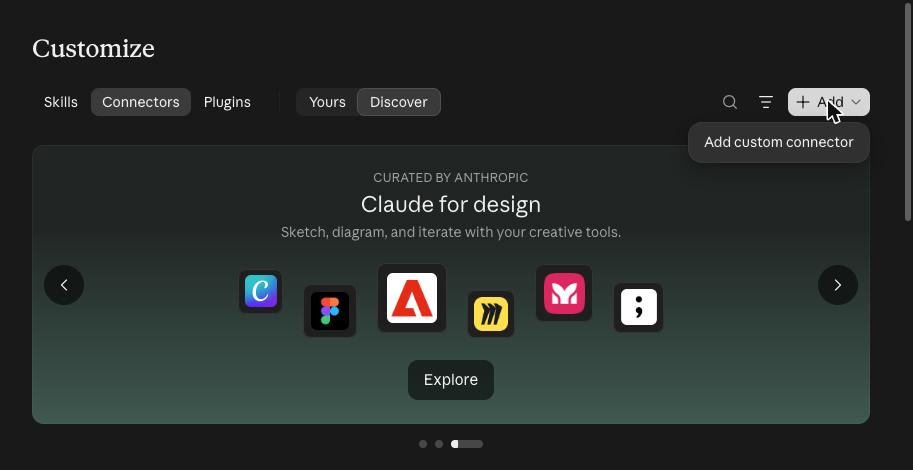
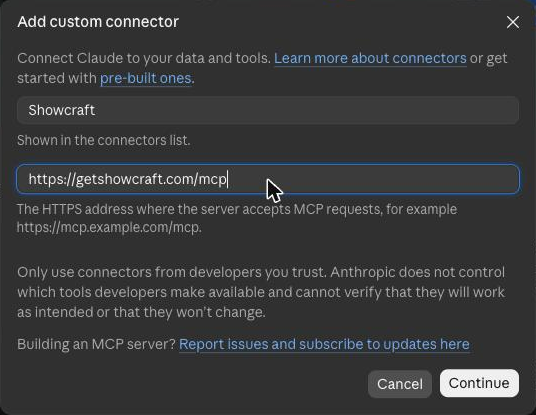
- Name: Showcraft. MCP server URL: https://getshowcraft.com/mcp. Click Continue.
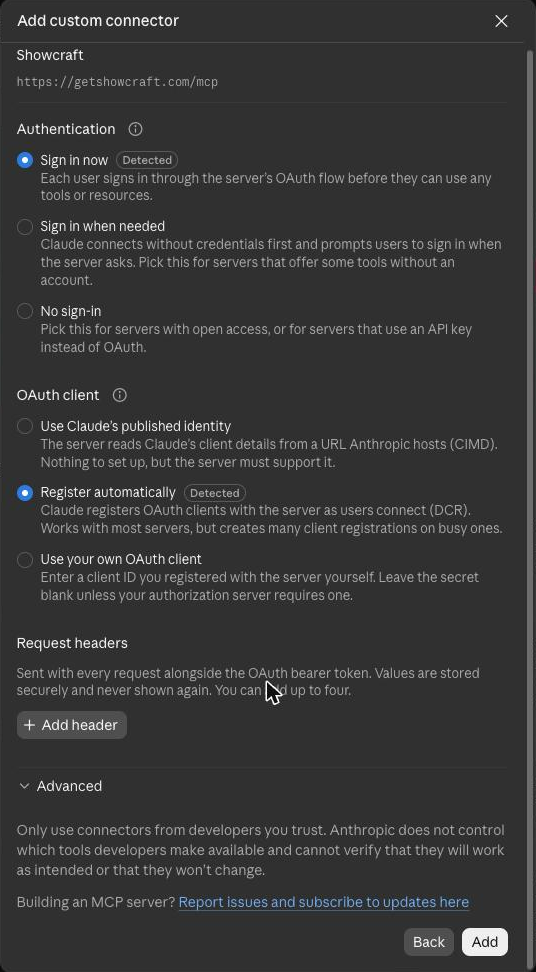
- Claude detects the sign-in: keep Sign in now and Register automatically, both marked Detected. Click Add.
- Showcraft's sign-in page opens: sign in with the Google account of your Showcraft account. Claude then shows Showcraft among your connectors.
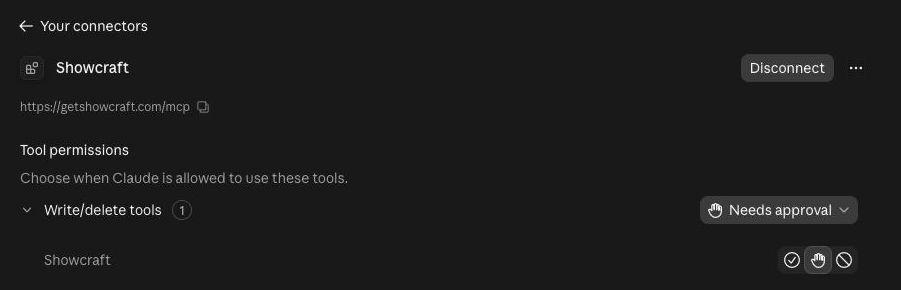
- Once signed in, the connector's page lists Showcraft under Tool permissions as Needs approval. Click the check on its row, so Claude may call it without asking: driving the app calls the tool again and again, and an approval at each call would stop the loop.
- In a chat, press +, then Connectors, and turn Showcraft on for that conversation. Say "drive Showcraft".
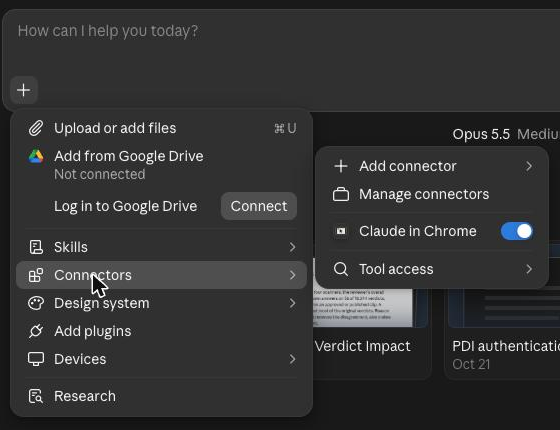
Plans: a Free account can add one custom connector; Pro, Max, Team and Enterprise add as many as they need. On a Team or Enterprise plan the owner adds it and you connect. The desktop and mobile apps share the account's connectors.
Claude Code Claude Code 2.1.314 · 2026-10-30
Claude Code, in the terminal, takes Showcraft as a plugin: the plugin brings the server and the /showcraft:drive command.
- In a terminal, add the marketplace and install the plugin. Inside a Claude Code session the same two lines work with a slash: /plugin marketplace add … and /plugin install ….
claude plugin marketplace add olivier-babelcast/showcraft-plugin
claude plugin install showcraft@showcraft
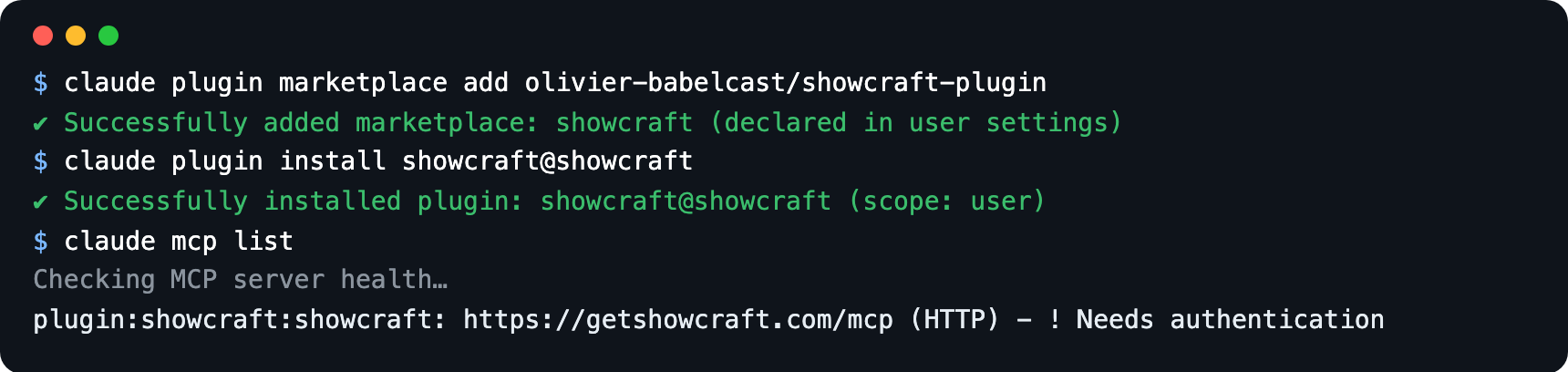
- Sign in once. In a session, type /mcp, pick showcraft, choose Authenticate; the browser opens Showcraft's sign-in page. From the terminal it is claude mcp login plugin:showcraft:showcraft.
- In a session, type /showcraft:drive, or say "drive Showcraft".
Without the plugin, claude mcp add --transport http showcraft https://getshowcraft.com/mcp registers the server for the config folder Claude Code runs in, and nowhere else; the plugin is the way that follows you. The plugin's code is public: github.com/olivier-babelcast/showcraft-plugin.
Codex Codex CLI 0.161.0 · 2026-10-30
- In a terminal, one line adds the server and opens the sign-in in your browser at once. Sign in on Showcraft's page; the terminal then says Successfully logged in.
codex mcp add showcraft --url https://getshowcraft.com/mcp
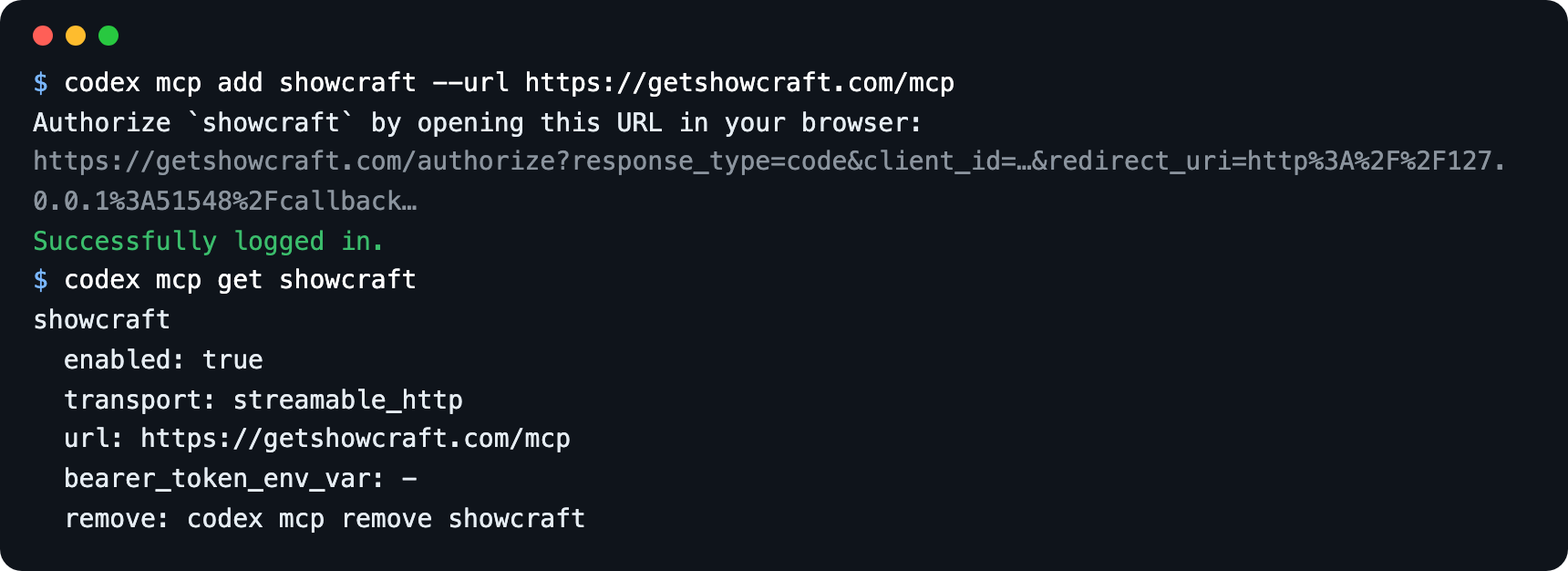
- codex mcp get showcraft shows it; codex mcp login showcraft signs in again when needed; codex mcp remove showcraft takes it out.
- The Codex app and the IDE extension read the same settings: Settings › MCP servers › Add server, type Streamable HTTP, the address above, Save, then Authenticate.
- In Codex, say "drive Showcraft": the server's own instructions tell it the loop.
ChatGPT chatgpt.com, web · 2026-10-30
- Open Settings › Plugins (under Integrations), then Browse directory.
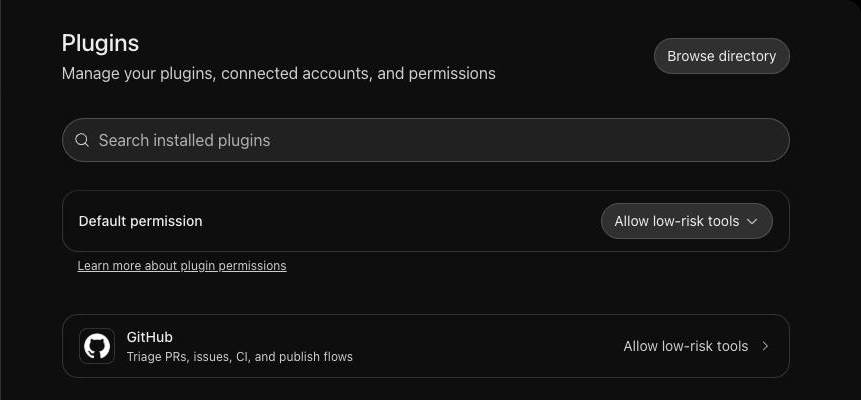
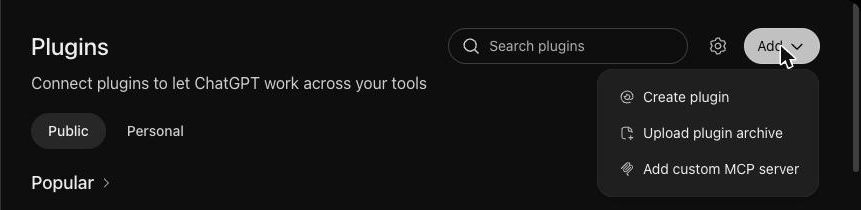
- At the top right, Add ▾, then Add custom MCP server.
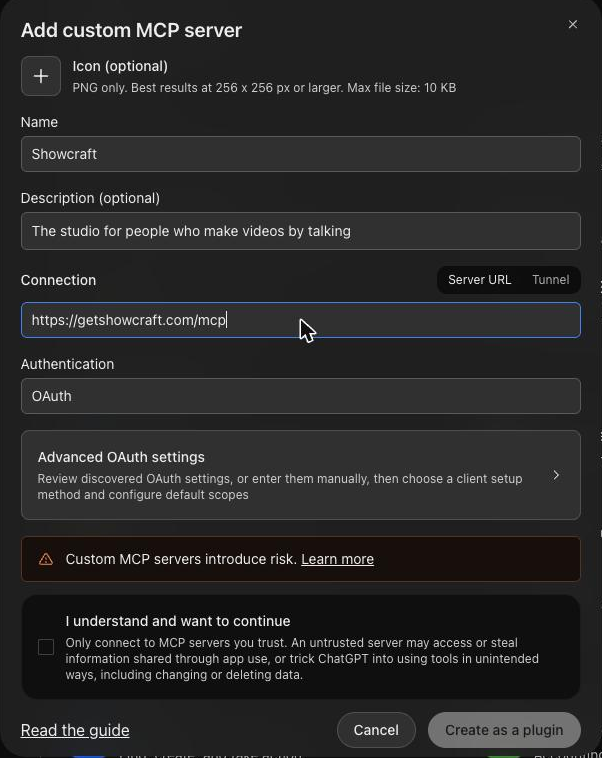
- Name: Showcraft. Connection: Server URL, https://getshowcraft.com/mcp. Authentication: OAuth. Tick I understand and want to continue, then Create as a plugin.
- Sign in on Showcraft's page when ChatGPT asks. In a chat, the plugin is in the + menu; turn it on and say "drive Showcraft".
Custom MCP servers are a feature of ChatGPT's paid plans; the steps above were taken on one. The Codex app on the computer is a separate way in, above.
Something is off?
Tell the Coach in the app's chat ("the Claude Code steps don't match my screen"): it reaches us. Or write in Discord's #feedback.